> ## Documentation Index
> Fetch the complete documentation index at: https://guides.a35hie.me/llms.txt
> Use this file to discover all available pages before exploring further.
# SerialPlotter
> A beautiful serial plotter for mac.
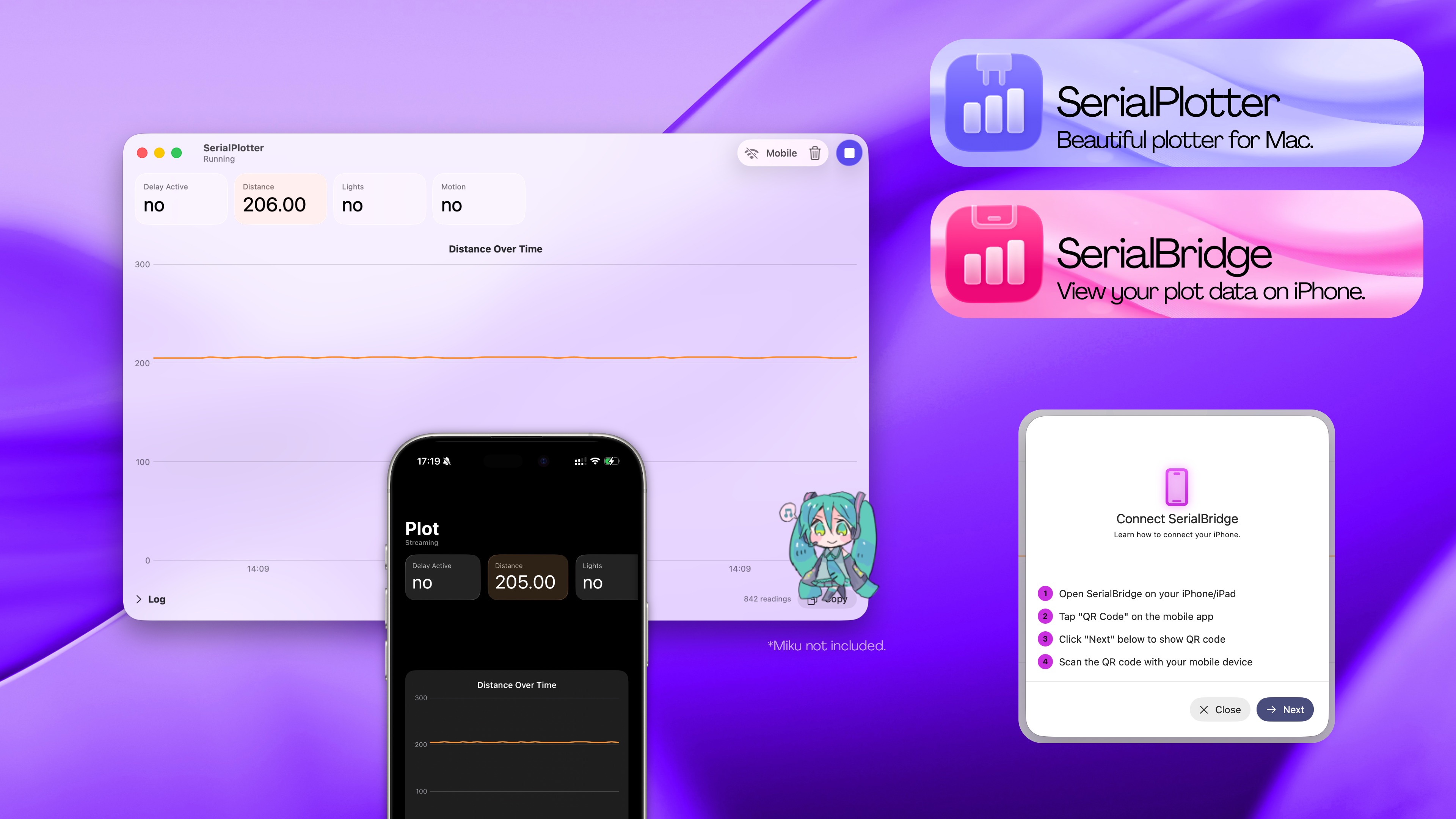
**Designed for macOS, iOS, and visionOS 26.**
Requires macOS 14.6, iOS 17.6, and visionOS 1.3 or later.
***
# Instructions
How to use SerialPlotter and SerialBridge.
* [SerialPlotter](#serialplotter)
* [SerialBridge](#serialbridge)

## SerialPlotter
How to use SerialPlotter:
Create an Arduino project.
```cpp theme={null}
void setup() {
Serial.begin()
}
```
Use this format: `SomeKey: 6969 | AnotherKey: 4242`
Example:
```cpp theme={null}
Serial.print("Charging Rate: ");
Serial.print(currentChargingRate);
Serial.print(" | New Charge: ");
Serial.print(newCharge);
Serial.print(" | Battery: ");
Serial.print(batteryChargePercentage);
Serial.print(" | Charging: ");
Serial.print(charging);
Serial.print(" | Light: ");
Serial.print(String(lightOn ? "On" : "Off"));
Serial.print(" | Dimmer: ");
Serial.println(String(dimmerPercentage));
```
* Connect your Arduino to your computer
* Upload the code to it
* Open SerialPlotter and click ▶︎ on the top right
* Enjoy!

## SerialBridge
How to use SerialBridge:
Follow the [SerialPlotter instructions](#serialplotter) first to get your plot ready.
Then,
* Click the "Mobile" button in SerialPlotter.
* Click "Next" in SerialPlotter.
To access your plotter data, either:
* Open the SerialBridge app and click "QR Code", or
* Simply scan the QR code with the Camera app.
You should see your plot, with the option to see the raw logs as well.
If nothing happens, you may need to try again.
***
# Credits
Thanks to:
* [DynamicNotchKit](https://github.com/MrKai77/DynamicNotchKit): Beautiful notch notifications